
These are the Release Notes for October 2026 for the Kubo solution. Here, you can find all the latest updates, including changes, improvements, and new features.
Table of Contents
October 12, 2026 | version: 2.1.5
🚀 NEW | Required and Recommended Tracks on the Student Initial Page
NEW | Required and Recommended Tracks on the Student Initial Page
-
Location: Kubo System > Student Initial Page
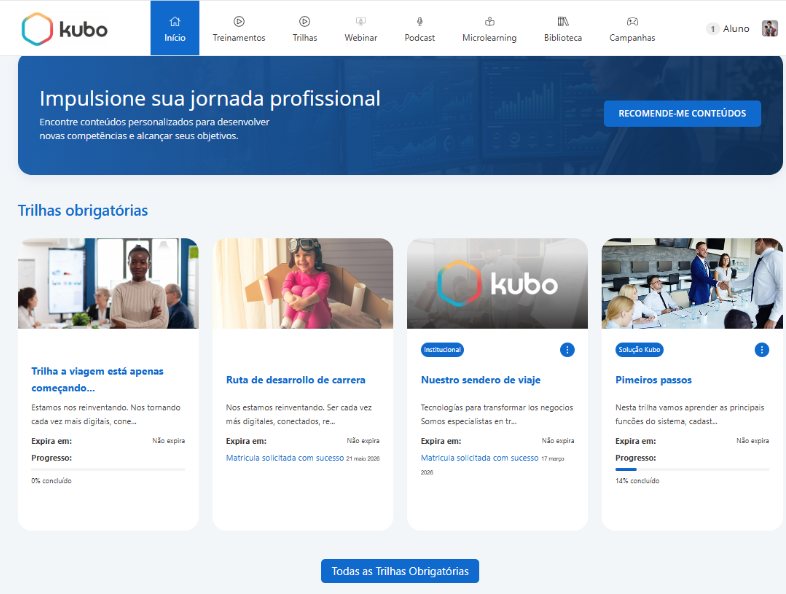
Starting with this version, we’ve added new sections to the student’s initial page to highlight learning paths, whose priority is set by the Administrator.
When a track enrollment batch is configured as Required or Recommended, the corresponding track will be prominently displayed on the student’s home page in the Required Tracks or Recommended Tracks sections, respectively. This way, students can immediately view which tracks require their attention as they access the platform.
View an example image of how this is displayed:
Information
Displaying these sections on the initial page is optional and can be enabled under Settings > Policies > Display on Index.
With this new feature, students can more clearly identify the priority paths for their development, making it easier for them to engage in and complete the training programs defined by the organization.
🛠️ IMPROVEMENT | New Options for Batch Track Enrollment
IMPROVEMENT | New Options for Batch Track Enrollment
-
Location: Kubo System > Students > Batch Track Enrollment
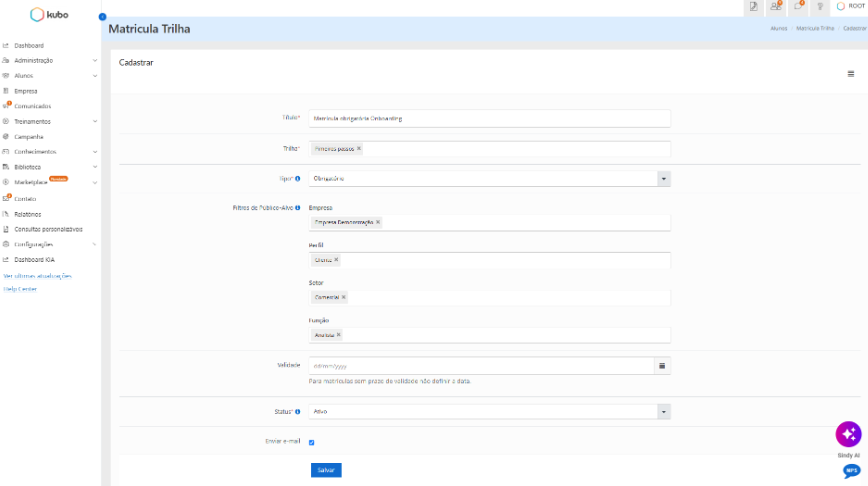
We’ve made improvements to the batch course registration feature by adding new target audience filters, new behavior options, and a review workflow before confirmation. As a result, starting with this version, when you create or edit a batch, you can set the Registration Type.
The available options are:
-
Optional: the track is displayed only in the student’s track menu;
-
Required: in addition to the track menu, the track is also highlighted on the student’s initial page;
-
Recommended: like the Required option, the track is highlighted on the student’s initial page.
In addition, two new filters have been added to the Target Audience Filters section: Industry and Job Title. With these filters, the Administrator can more precisely target which students will be affected by the batch, in addition to the existing Company and Profile filters.
Two new options have also been added to the batch:
-
Deactivate batch enrollment: when enabled, the system processes enrollments according to the filters. When inactive, the system stops processing new enrollments;
-
Revoke Access: Available when editing an existing batch, the user can choose whether or not to revoke access for students who no longer meet the configured filters, provided they have 0% progress on the track.
Before processing the batch, the system displays a review screen with a summary of the impact—including the quantity of students affected and the enrollments for associated tracks and training courses. The Administrator can click Save and Process to confirm the operation. The system processes the enrollments in the background, and the batch status is automatically updated in the list as processing progresses.
View example screenshots:
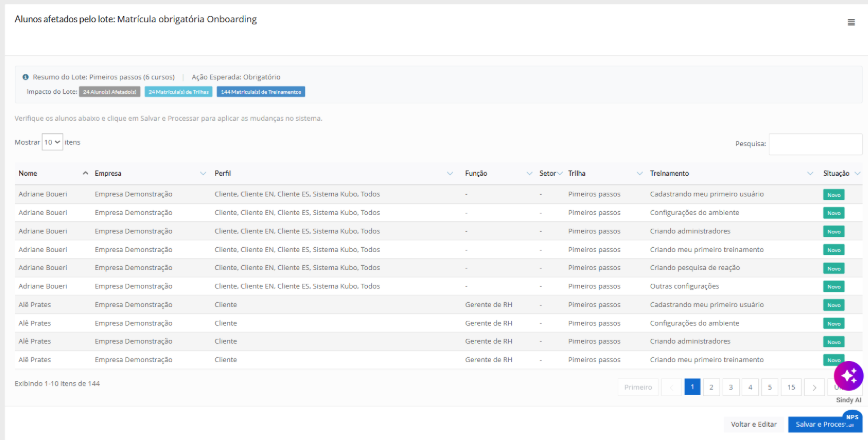
With these improvements, administrators now have greater control over batch enrollments, allowing them to segment the user base by sector and role, and monitor the impact of operations before confirming them.
🛠️ IMPROVEMENT | New feedback survey experience
IMPROVEMENT | New feedback survey experience
-
Location: Kubo System > Training > Reaction Survey
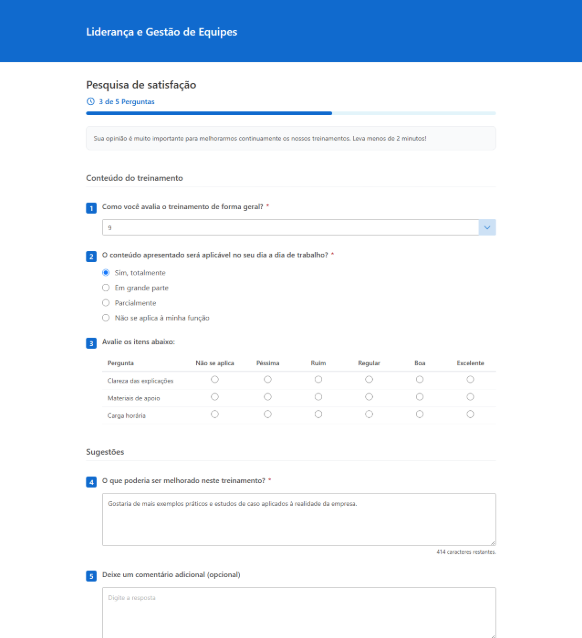
Starting with this version, the feedback survey screen for training sessions, tracks, and in-person training has been redesigned with a cleaner, more organized look—making it simpler and more intuitive for students to complete.
View the improvements made:
-
Progress indicator: A bar at the top of the survey shows, in real time, how many questions have already been answered (for example: 3 out of 5 questions);
-
Highlighted required questions: Required questions are marked with an asterisk (*). If a student attempts to send the survey without answering them, the system displays the warning Required question not answered and highlights the pending questions;
-
Character meter: Descriptive answers are now limited to 500 characters, and students can also view how many characters remain as they type;
-
Automatic return: After clicking Send, students are automatically redirected back to the training module or learning path without having to navigate manually.
View an example image of the new screen:
When a required question is left unanswered, the system displays a warning and highlights the unanswered question:
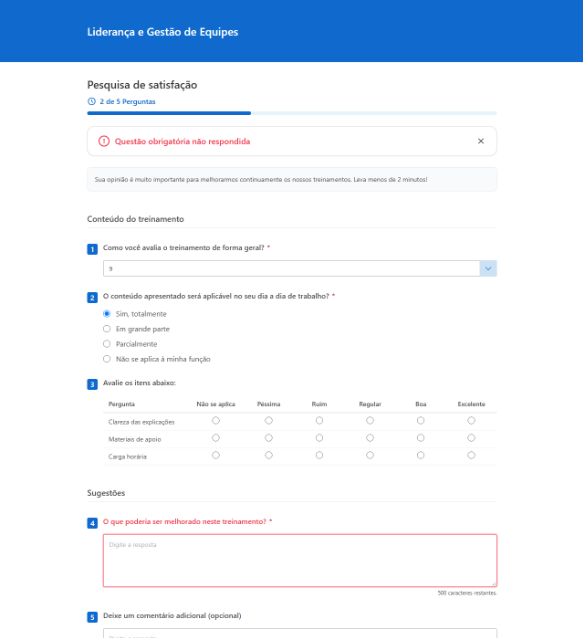
This improvement is intended to make the feedback survey easier and more straightforward for students to complete, thereby encouraging their engagement with the training evaluations.
🛠️ IMPROVEMENT | Bulk Actions on the List of Students in the In-Person Training
IMPROVEMENT | Bulk Actions on the List of Students in the In-Person Training
-
Location: Kubo System > In-person/synchronous training
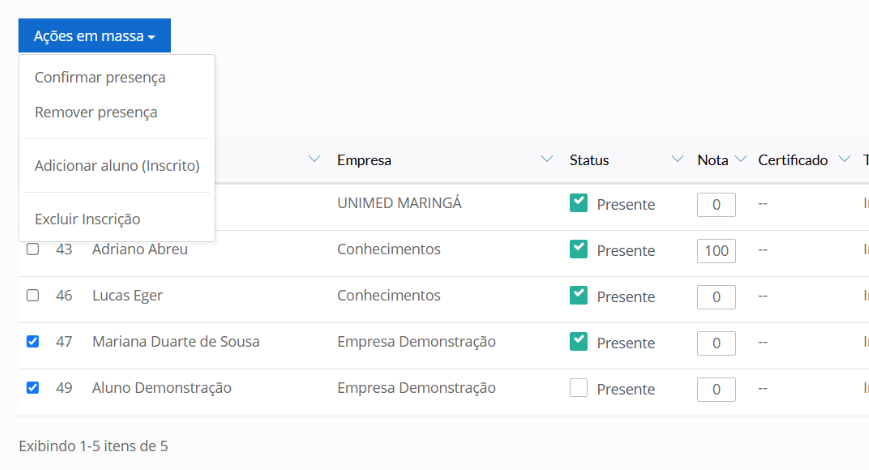
We’ve made improvements to the list of students enrolled in in-person/synchronous training, allowing the Administrator to perform actions for multiple students at the same time.
Previously, marking students as present or absent, adding students from the waiting list, and excluding registrations had to be done one student at a time. Now, you can select the desired students from the list or select all of them at once, and apply the action with just one confirmation. The selection is retained even when navigating between pages of the list.
When you select at least one student, the system displays the Bulk Actions button with the following options:
-
Confirm Attendance: records the attendance of all selected students;
-
Confirm Absence: removes the attendance of the selected students;
-
Add Student (Enrolled): moves the selected students from the waiting list to the list of students enrolled in the training;
-
Delete Enrollment: deletes the enrollment of the selected students in the training.
View an example image of the new student selection feature:
Information
The exclusion of a registration is permanent and cannot be undone. Before you finish, the system displays a confirmation window.
This improvement is intended to streamline attendance tracking for classes, especially in training sessions with many participants, thereby reducing the time spent on repetitive actions.
🛠️ IMPROVEMENT | New report screen and background export
IMPROVEMENT | New report screen and background export
-
Location: Kubo System > Reports
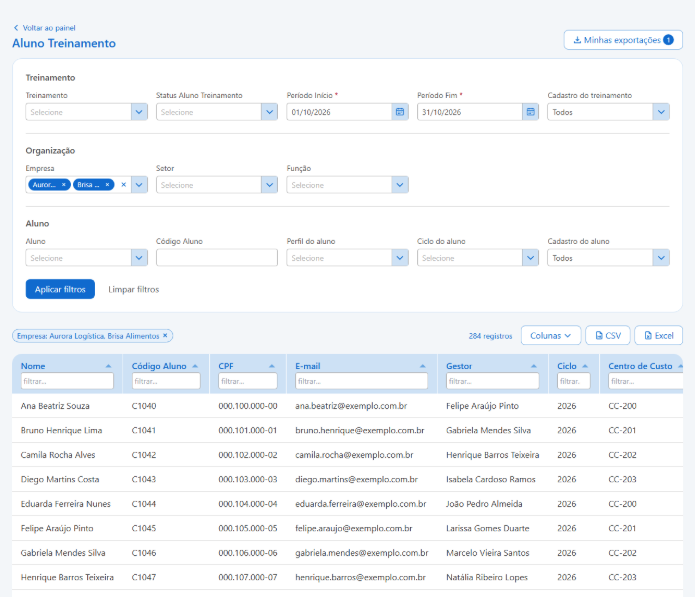
Starting with this version, the Student Training, Training Catalog, Usage Check - Statement, Email Delivery, and Expired and Pending Registrations reports now feature a new screen that brings together the filters, results, and export options in one place.
Previously, the Administrator would set the filters on one page and view the results on another. In that case, reports with many records could take a long time to load.
Now, the results are displayed on the same screen, organized into pages, and the system loads only the page being viewed. As a result, queries are faster—even in organizations with a large number of students and enrollments.
Here is an example image of the new screen:
Filters
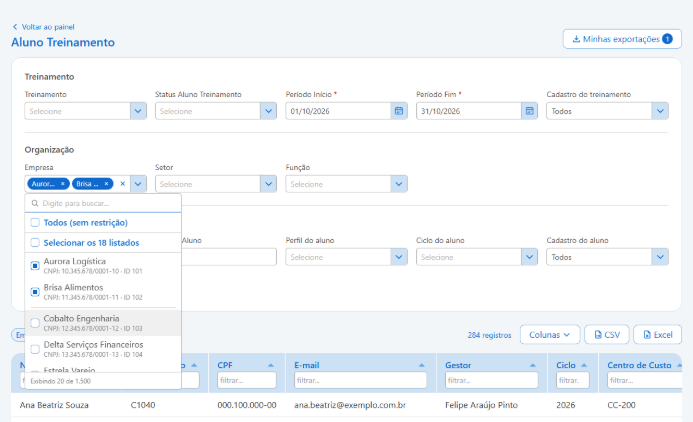
The filters have been organized into groups (Training, Organization, and Student), and the selection lists now include new features. Here are the improvements:
-
Search within lists: You can search by name, code, or item ID, and each option displays the code and ID to make identification easier;
-
Selecting multiple items: The selected items appear in the field and at the top of the list, and can be removed one by one or all at once;
-
Total number of items: The list shows how many items there are (for example: Displaying 20 of 1,500) and allows you to load more results;
-
Related filters: When selecting Company, Industry, Role, Profile, or Cycle, the list of students shows only those who match that selection;
-
Date fields: You can enter the date directly using only numbers (for example: 01102026); or select it from the calendar, which is displayed in the Administrator’s language and highlights the selected period.
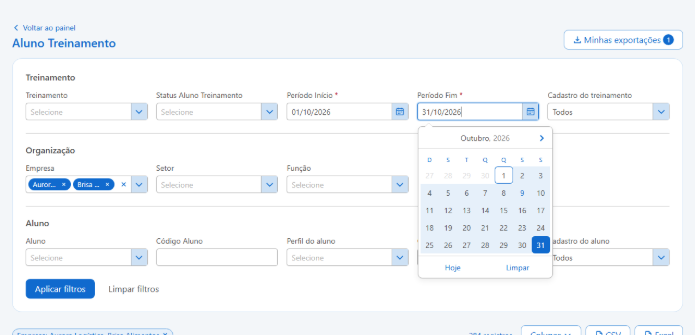
Report Results
In the list, you can filter and sort by any column, choose which columns to display using the Columns button, and adjust their width. The selected columns are retained the next time the report is opened in the same browser. In the date columns, the filter accepts either the full date or just part of it, such as the month and year (10/2026) or just the year (2026).
Background Export
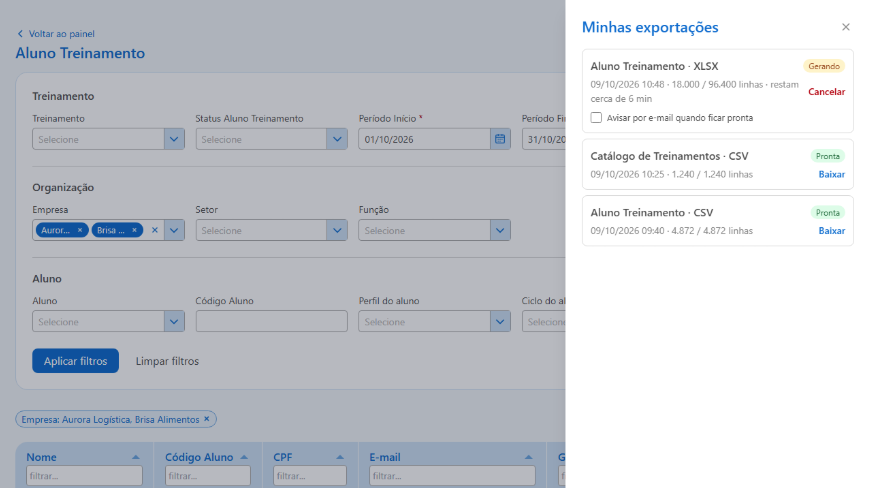
The CSV and Excel buttons now generate the file in the background. While the file is being generated, the Administrator can continue using the system and monitor progress in My Exports, which shows the quantity of rows generated and the estimated completion time. If the report screen remains open, the download begins automatically when the file is ready, accompanied by an audible alert.
The file contains only the columns displayed on the screen (in the same order) and respects the applied filters. It is also possible to cancel an export in progress.
For exports that take longer, you can select the option Notify by email when ready. This way, the system sends an email to the Administrator with a link to download the file, without the need to keep the screen open.
View an example screenshot of My Exports:
Information
-
Files are available in My Exports for 7 (seven) days;
-
In the Student Training report, the screen displays periods of up to 366 days.
-
For longer periods, the system reports the quantity of records found, and the results can be exported as a CSV or Excel file.
-
Training Catalog
In the Training Catalog report, the Period field defines the date range to which the specified period refers. The available options are:
-
Training Creation: displays the training courses created during the period (default option);
-
Enrollments: displays training courses with enrollments during the period; and the Number of Enrollments, Graduates, and Feedback Rating Percentage columns now reflect only this period;
-
Training Start and End Dates: displays training courses with start and end dates within the period.
Information
In the Training Creation and Training Check-In and Check-Out options, the indicators take into account all the training history.
With this update, administrators will enjoy faster queries, easier-to-use filters, and the ability to export large volumes of data without having to wait on the screen.