
This documentation is intended to inform and guide users regarding the Content Recommendation feature. This feature uses the knowledge matrices configured for the company, with a focus on presenting learning content related to the learner’s current role or seniority level, or based on the career path they intend to follow. As a result, the Kubo Skills settings also allow the automation of user onboarding and ongoing training.
Based on the configurations configured by the Administrator, the system identifies the complete knowledge matrix and the training courses and learning paths associated with the learner’s role (current or selected in the filter). In this way, the learner can view all the content that is part of their development journey and, within this matrix, identify which areas of knowledge still have gaps (scores below what is expected for the role) and which content is related to them.
In addition, the learner can consult the matrix for a future role if they are preparing to take on a new position within the organization. This allows them to view what knowledge and content are expected for that role and understand which areas still need development.
Content Recommendations is a feature through which each employee automatically receives customized training recommendations to advance in their current role—and to prepare for what they hope to achieve in the future. Less focus on “what should I study?” and more guidance on the next step.
Instructions
For the Content Recommendation feature to work properly, you must configure three configurations in the system. These configurations are required for the system to be able to build the content matrix corresponding to each role.
Step 1 - Create the knowledge matrix
First, you must register the knowledge and competencies that will be included in the matrices used by the organization. Start by creating the competencies, and then the knowledge associated with each one.
Examples to help understand the relationship between competencies and knowledge:
-
Behavioral Competency < Communication
-
Behavioral Competency < Negotiation
-
Behavioral Competency < Conflict Management
-
Behavioral Competency < Leadership
-
Technical Competency < Project Management
-
Technical Competency < Agile Methodologies
-
Technical Competency < Programming Language
-
Technical Competency < Power BI
View the registration instructions in the documentation for Create, edit or delete skills and knowledge.
Step 2 - Link knowledge to job functions
After registering the competencies, you must define which competencies are part of each role and their respective expected levels. This configuration determines the competency matrix that will be used for each role.
The expected level is rated on a scale from 1 to 4 and should be configured based on what is expected of someone in that position, even if that person does not yet fully meet the expected rating. The goal is to map out the gaps that need to be addressed with each person, based on their position, seniority, and performance.
Examples:
-
Administrative Manager < Behavioral Competency < Communication < Level 4
-
Administrative Manager < Behavioral Competency < Negotiation < Level 4
-
Administrative Manager < Behavioral Competency < Conflict Management < Level 3
-
Administrative Manager < Behavioral Competency < Leadership < Level 3
-
Project Leader < Technical Competency < Project Management < Level 4
-
Project Leader < Technical Competency < Agile Methodologies < Level 4
-
Project Leader < Technical Competency < Programming Language < Level 1
-
Project Leader < Technical Competency < Power BI < Level 2
View the guidelines for linking the expected knowledge and proficiency levels in the documentation for Link knowledge to the students' work function.
Step 3 - Link the knowledge to the training sessions and tracks
Finally, it is necessary to specify which knowledge areas are associated with the training courses and tracks.
-
For each training course, you can link up to five topics covered;
-
For each track, you can link up to 10 topics covered.
This mapping allows appropriate content recommendations, taking into account the degree of “depth” that a given training course or track provides on the topic (based on the expected level).
Examples:
-
Anti-Fragile Leadership Track < Leadership Knowledge < Level 3 (here, the level is used to indicate how deeply the training actually delves into the topic)
-
Anti-Fragile Leadership Track < Adaptability Knowledge < Level 4
-
Anti-Fragile Leadership Track < Change Management Knowledge < Level 2
-
Introduction to Power BI Training < Power BI Knowledge < Level 1
-
Scrum Practices Training < Agile Methodologies Knowledge < Level 2
This configuration allows the system to correlate the list of content with the data that make up the competency matrix for each role in the company.
To perform the configuration, access the training course or track's details or edit page and use the + Add Knowledge option. View the documentation for Create, edit or delete online/asynchronous training.
Important
Content Recommendations depend on the three configurations described above. The more complete the link between roles → knowledge → training courses/tracks is, the more comprehensive the matrix presented to the student will be.
After completing the three configurations
Once the three steps have been properly configured, the system will enable the My Journey option when you click on a student's profile. The Content Recommendations section can also be enabled on the student's index page, at the Administrator's discretion.
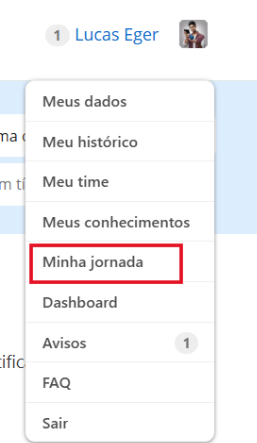
When you click on the My Journey menu, the system will display the new screen shown below, which includes the options Current Level and Desired Career. This allows students to also get a sense of the knowledge demanded for a future career they may be interested in, thereby developing the concept of a competency-based career plan.
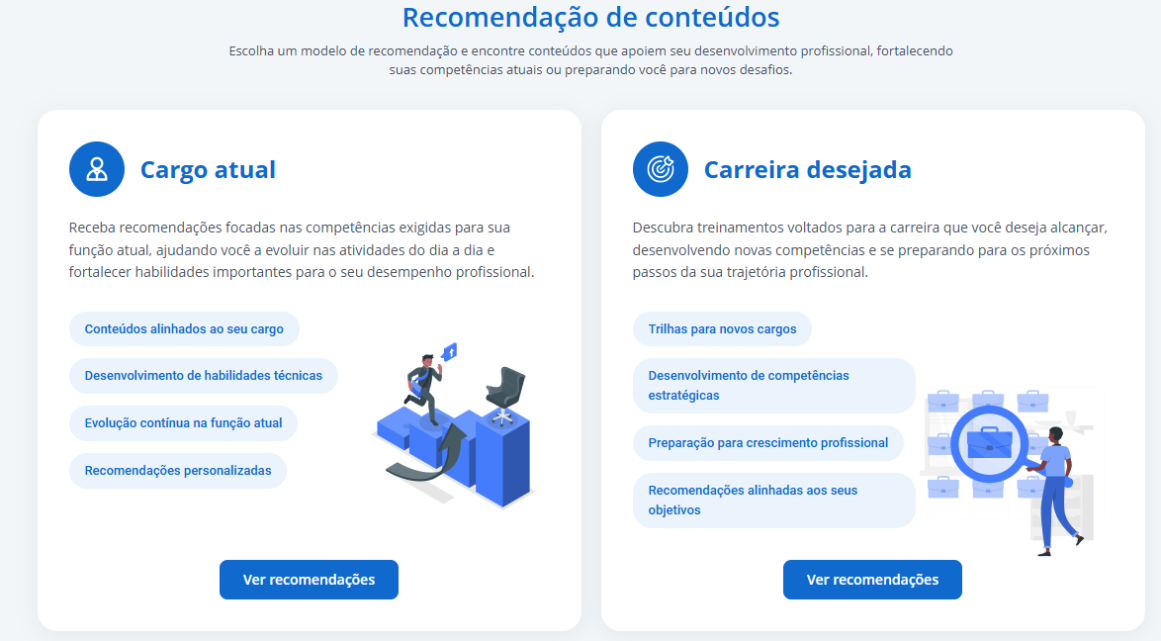
-
Current Level: When you click View Recommendations for the current level, the system will load the information and display the required training courses for that level (currently linked to the student in the system):
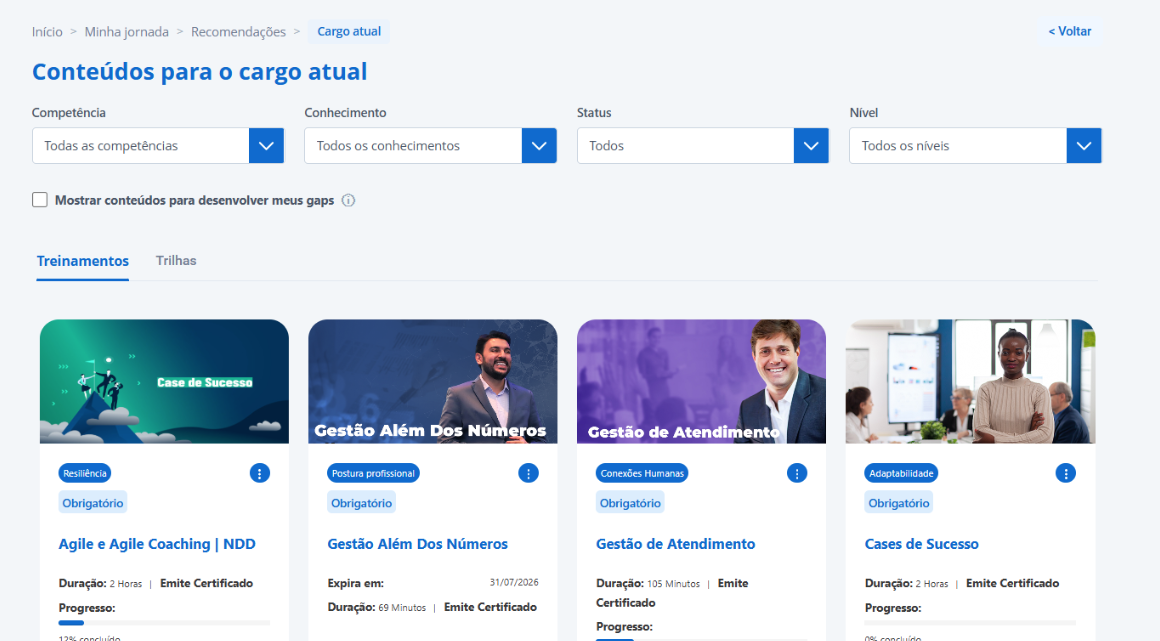
On this screen, the user will have filters such as Competency, Knowledge, Enrollment Status, and Level. They will also have the option to filter only content where there are gaps—that is, where the self-assessment score is lower than required or where no self-assessment was completed for the associated knowledge areas (allowing the student to focus on those areas of knowledge that have not yet been developed or that demand improvement relative to the expected level).
-
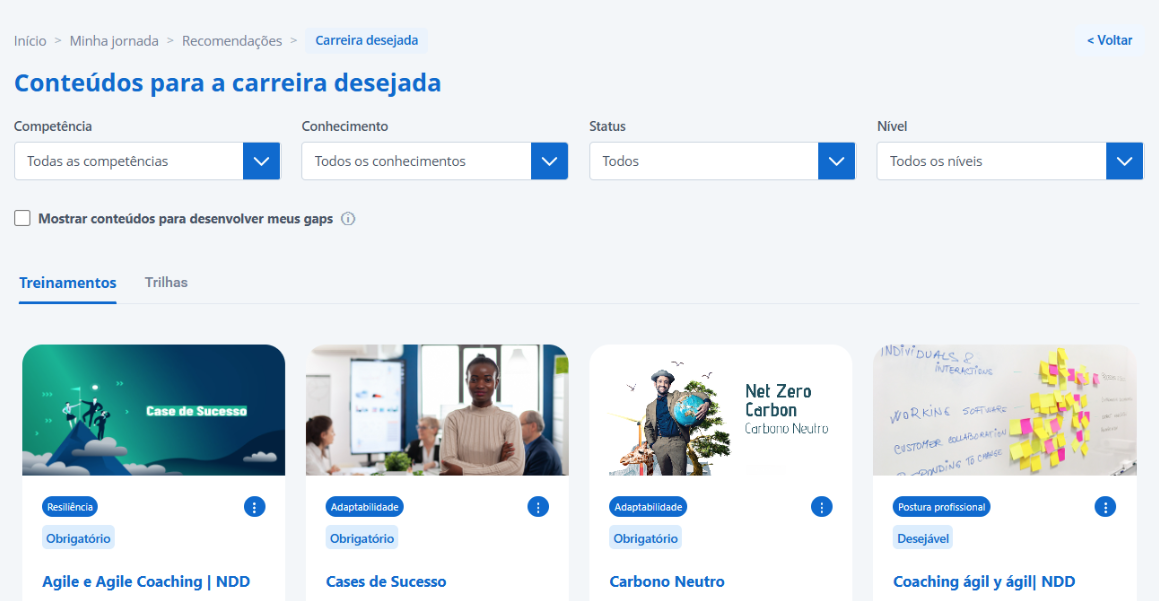
Desired Career Path: When you click View Recommendations for your desired career path, the system will display a filter screen. The user can select a job title and also filter by specialty or team.
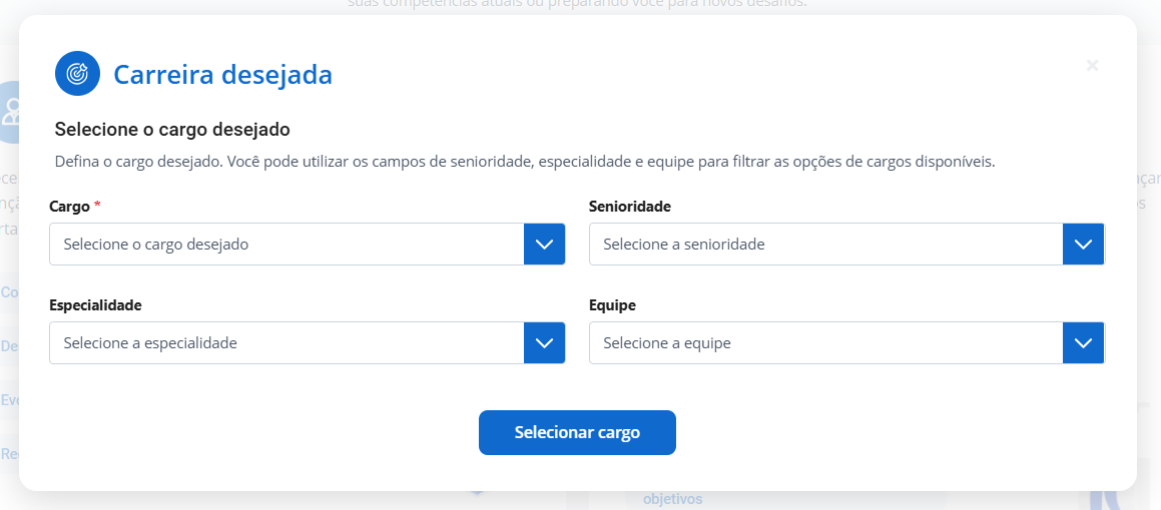
After clicking Select Position, the system will load the information and display the recommended training courses that are required as a minimum for your desired career path:
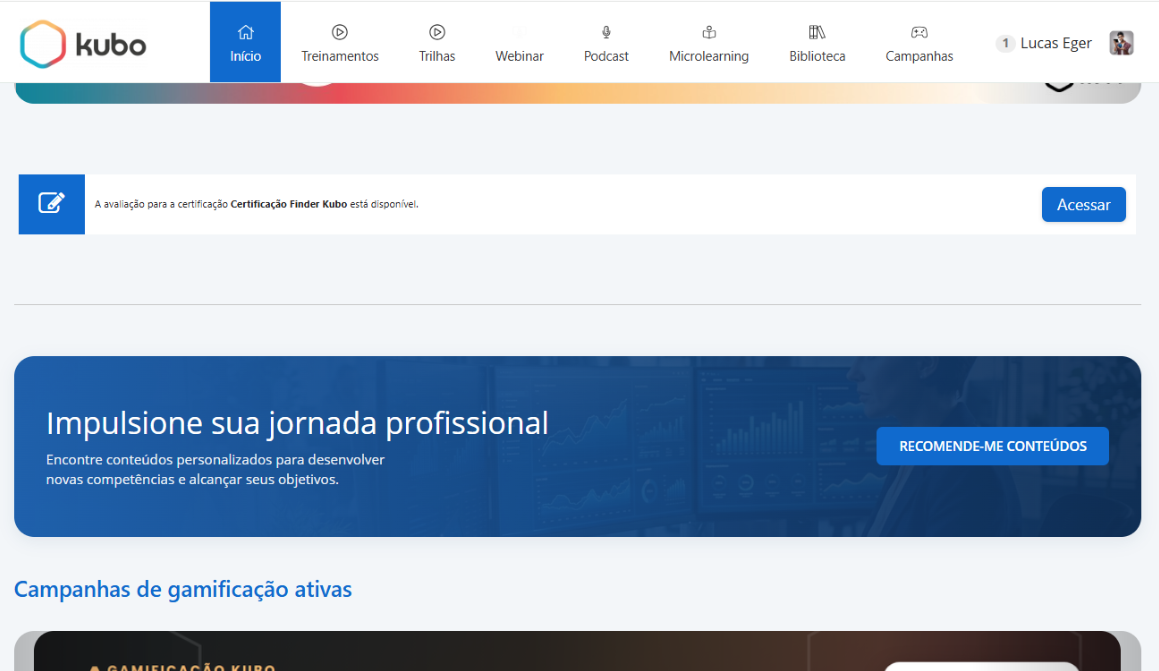
To have content recommendations appear on the student's index (home page), the Administrator must enable the new content recommendation section under Settings > List > Display on index. This configuration is optional.
The driving force behind it: Kubo Skills
Smart recommendations are only possible because the system reads your company's skills and knowledge tree, built in Kubo Skills. It is Kubo Skills that translates each role into expected skills and knowledge—without this prior configuration, there is no basis for guiding anyone.
-
Map competencies: Define the competencies that truly matter to the company;
-
Link knowledge: Connect knowledge to each competency in the tree;
-
Associate with levels: Map competencies and knowledge by level, area, and seniority.
Tip
The more comprehensive and updated the skills tree is, the more accurate the recommendation will be.